Spec Reporter
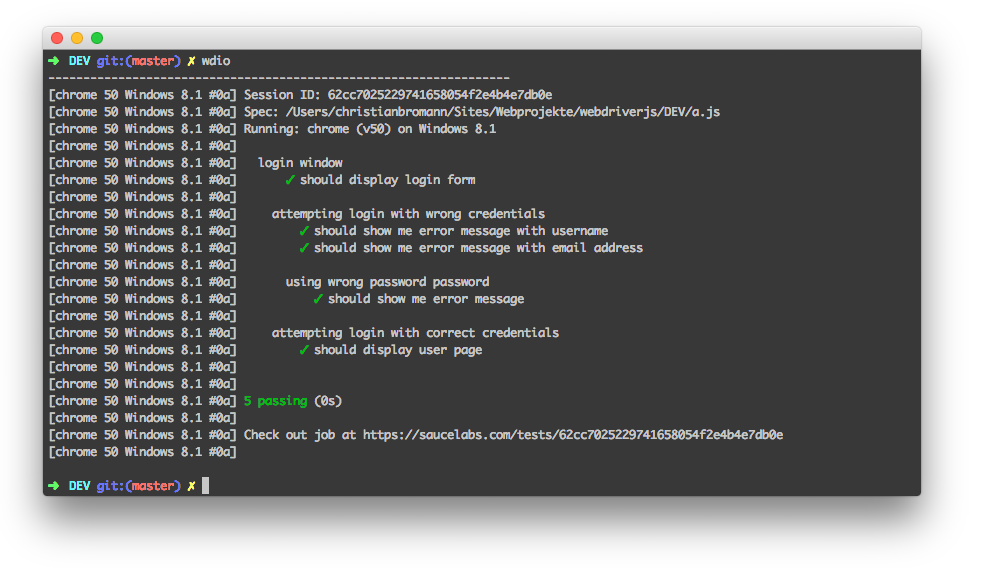
A WebdriverIO plugin to report in spec style.
Installation
The easiest way is to keep @wdio/spec-reporter as a devDependency in your package.json, via:
npm install @wdio/spec-reporter --save-dev
Instructions on how to install WebdriverIO can be found here.
Configuration
The following code shows the default wdio test runner configuration. Just add 'spec' as a reporter
to the array.
// wdio.conf.js
module.exports = {
  // ...
  reporters: ['dot', 'spec'],
  // ...
};
Spec Reporter Options
symbols
- Type
object- Default
{passed: '✓', skipped: '-', failed: '✖'}
Provide custom symbols for passed, failed and or skipped tests
Example
[
  "spec",
  {
    symbols: {
      passed: '[PASS]',
      failed: '[FAIL]',
    },
  },
]
sauceLabsSharableLinks
- Type
boolean- Default
true
By default the test results in Sauce Labs can only be viewed by a team member from the same team, not by a team member
from a different team. This options will enable sharable links
by default, which means that all tests that are executed in Sauce Labs can be viewed by everybody.
Just add sauceLabsSharableLinks: false, as shown below, in the reporter options to disable this feature.
Example
[
  "spec",
  {
    sauceLabsSharableLinks: false,
  },
]
onlyFailures
- Type
boolean- Default
false
Print only failed specs results.
Example
[
  "spec",
  {
    onlyFailures: true,
  },
]
addConsoleLogs
- Type
boolean- Default
false
Set to true to show console logs from steps in final report
[
  "spec",
  {
    addConsoleLogs: true,
  },
]
realtimeReporting
- Type
boolean- Default
false
Set to true to display test status realtime than just at the end of the run
[
  "spec",
  {
    realtimeReporting: true,
  },
]
showPreface
- Type
boolean- Default
true
Set to false to disable [ MutliRemoteBrowser ... ] preface in the reports.
[
  "spec",
  {
    showPreface: false,
  },
]
With it set to false you will see output as:
Running: loremipsum (v50) on Windows 10
Session ID: foobar

» foo/bar/loo.e2e.js
Foo test
   green ✓ foo
   green ✓ bar

» bar/foo/loo.e2e.js
Bar test
   green ✓ some test
   red ✖ a failed test
   red ✖ a failed test with no stack
and with true (default) each line will be prefixed with the preface:
[loremipsum 50 Windows 10 #0-0] Running: loremipsum (v50) on Windows 10
[loremipsum 50 Windows 10 #0-0] Session ID: foobar
[loremipsum 50 Windows 10 #0-0]
[loremipsum 50 Windows 10 #0-0] » foo/bar/loo.e2e.js
[loremipsum 50 Windows 10 #0-0] Foo test
[loremipsum 50 Windows 10 #0-0]    green ✓ foo
[loremipsum 50 Windows 10 #0-0]    green ✓ bar
[loremipsum 50 Windows 10 #0-0]
[loremipsum 50 Windows 10 #0-0] » bar/foo/loo.e2e.js
[loremipsum 50 Windows 10 #0-0] Bar test
[loremipsum 50 Windows 10 #0-0]    green ✓ some test
[loremipsum 50 Windows 10 #0-0]    red ✖ a failed test
[loremipsum 50 Windows 10 #0-0]    red ✖ a failed test with no stack
[loremipsum 50 Windows 10 #0-0]
color
- Type
boolean- Default
true
Set to true to display colored output in terminal
[
  "spec",
  {
    color: true,
  },
]
Parallel mode
The reporter doesn't support parallel mode (mochaOpts.parallelMode, cucumberOpts.parallelMode) yet. A Mocha describe block that comes after another one, or a Cucumber scenario that starts while another one runs, is shown nested under it, and with Cucumber retry the passing count can be wrong. The results of the tests and the exit code are correct.
Environment Options
There are certain options you can set through environment variables:
FORCE_COLOR
If set to true, e.g. via FORCE_COLOR=0 npx wdio run wdio.conf.js, all terminal coloring will be disabled.
